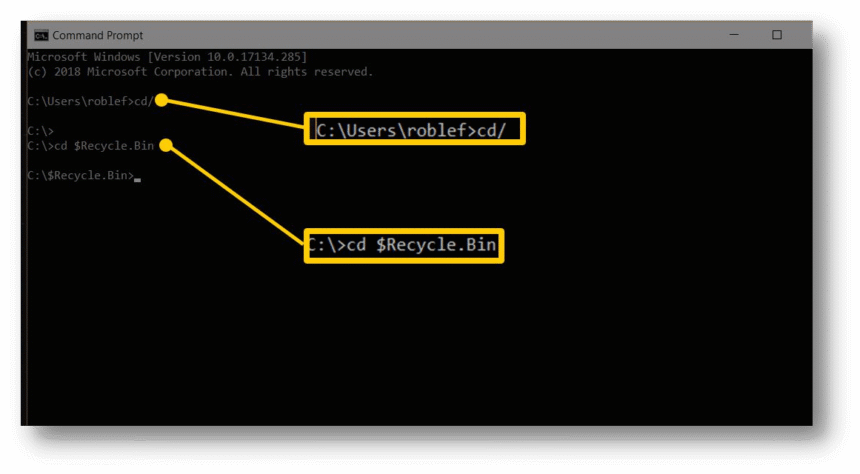
Losing important files unexpectedly can be a frustrating experience, especially when you thought they were safely stored on your computer. Whether it’s due to accidental deletion, a system crash, or a sudden power failure, Windows users often find themselves in desperate need of file recovery solutions. Fortunately, Windows provides a powerful built-in tool called the Command Prompt, commonly known as CMD, which allows you to perform various advanced tasks, including file recovery. This guide will walk you through the process of recovering unsaved files using CMD prompts on Windows while also providing insights into How to recover files using CMD alternative methods and highlighting more CMD tutorials for file management and recovery.
Understanding CMD and Its Role in File Recovery
The Command Prompt is a command-line interpreter in Windows operating systems. Unlike the graphical user interface, CMD allows users to interact with the system through typed commands, providing more control over file management and system operations. Using CMD for file recovery is particularly useful because it can access files even when they are not visible in the standard File Explorer or are temporarily deleted. By leveraging CMD commands, you can scan directories, recover hidden files, and restore unsaved or lost files efficiently.
Preparing Your System for CMD-Based Recovery
Before attempting file recovery through CMD, it’s crucial to take a few preparatory steps to avoid further data loss. First, avoid saving new files on the drive where the data was lost, as this could overwrite the recoverable files. Second, ensure that you have administrator privileges on your Windows account because CMD commands for file recovery often require elevated permissions. Lastly, if possible, create a backup of the drive or folder where the loss occurred. This ensures that if any command does not execute as expected, your existing files remain safe.
Step-by-Step Guide to Recover Unsaved Files Using CMD
One of the most common CMD commands used for file recovery is the attrib command. This command helps you recover files that may have been marked as hidden or system files. Here’s how to use it effectively:
- Open Command Prompt as Administrator: Press Windows + S, type cmd, right-click the Command Prompt application, and select Run as administrator.
- Navigate to the Target Drive: Type the drive letter where the files were lost, followed by a colon. For example, if your files were on drive D, type D: and press Enter.
- Use the attrib Command: Enter the following command:
attrib -h -r -s /s /d *.*
Here, -h removes the hidden attribute, -r removes the read-only attribute, and -s removes the system attribute. The /s switch applies the command to all files in the folder and subfolders, while /d includes directories. This command effectively makes hidden or system files visible again, which may include your lost or unsaved files. - Check the Folder for Recovered Files: After running the command, navigate back to the folder or drive to see if your files have been restored. You can then copy them to a secure location to prevent further loss.
How to Recover Files Using CMD Alternative Methods
While the attrib command is highly effective, sometimes files may be lost due to deletion or corruption rather than being hidden. In such cases, Windows provides alternative CMD-based solutions for recovery. The chkdsk command is particularly useful for scanning and repairing file system errors, which can help recover inaccessible files. To use it, type chkdsk X: /f /r in CMD, replacing X with your drive letter. The /f parameter fixes errors on the disk, while /r locates bad sectors and attempts recovery of readable information. This method works well for recovering files that may not appear due to disk errors.
Another alternative involves using the sfc /scannow command, which scans system files and restores corrupted or missing system files. While this is primarily a system integrity tool, it can occasionally restore files that were lost due to system corruption or improper shutdowns. Using these CMD alternatives ensures that you have multiple strategies to recover unsaved or missing files without third-party software.
Advanced CMD Techniques for File Recovery
For users seeking deeper recovery methods, CMD offers advanced commands and scripts that can target specific file types or locations. For instance, using forfiles in combination with xcopy can help locate files modified within a specific date range and copy them to a safe location. A sample command would be:
forfiles /S /M *.* /D -7 /C “cmd /c copy @file D:\RecoveredF
This command searches all files modified in the last seven days and copies them to a folder named RecoveredFiles on drive D. Such advanced CMD operations provide flexibility and precision for file recovery, making it an invaluable tool for users dealing with large volumes of data.
Tips to Prevent Future Data Loss
Recovering unsaved files is always better than losing them permanently, but prevention is even more effective. To minimize the risk of future file loss, consider enabling Windows’ AutoSave feature, regularly backing up important files to external drives or cloud storage, and familiarizing yourself with CMD commands for file management. Additionally, maintaining a clean and organized file structure reduces the chance of accidental deletion and makes recovery easier when necessary.
More CMD Tutorials for File Management and Recovery
For those interested in expanding their CMD skills, there are several tutorials that can enhance your ability to manage and recover files. Learning commands like robocopy for robust file copying and synchronization, diskpart for disk management, and powercfg for power settings optimization can provide comprehensive control over your system. These more CMD tutorials not only help with recovery but also improve overall system maintenance, ensuring that your data remains secure and accessible.
Conclusion
Recovering unsaved files using CMD prompts on Windows is a practical and efficient method that leverages built-in tools without the need for additional software. By understanding the functionality of commands like attrib, chkdsk, and sfc /scannow, users can restore lost or hidden files, address disk errors, and maintain system integrity. Exploring How to recover files using CMD alternative commands and engaging with more CMD tutorials further equips you with advanced techniques for file management and recovery. With careful preparation, knowledge of CMD commands, and proactive file management strategies, you can safeguard your important data and reduce the stress associated with accidental file loss.