
Your phone probably holds years of memories: birthdays, holidays, family moments and photos you can never retake. Phones get lost, dropped in water and stolen, and that is why learning how to back up phone photos is one of the most useful bits of digital housekeeping you can do. This guide keeps things simple and works for both iPhone and Android.
Why Photo Backups Matter
A phone is a fragile place to keep irreplaceable files. Hardware fails, updates sometimes go wrong, and accounts can be locked. A backup means that if something happens to the phone, the pictures are still safe somewhere else. It takes about ten minutes to set up and then mostly looks after itself.
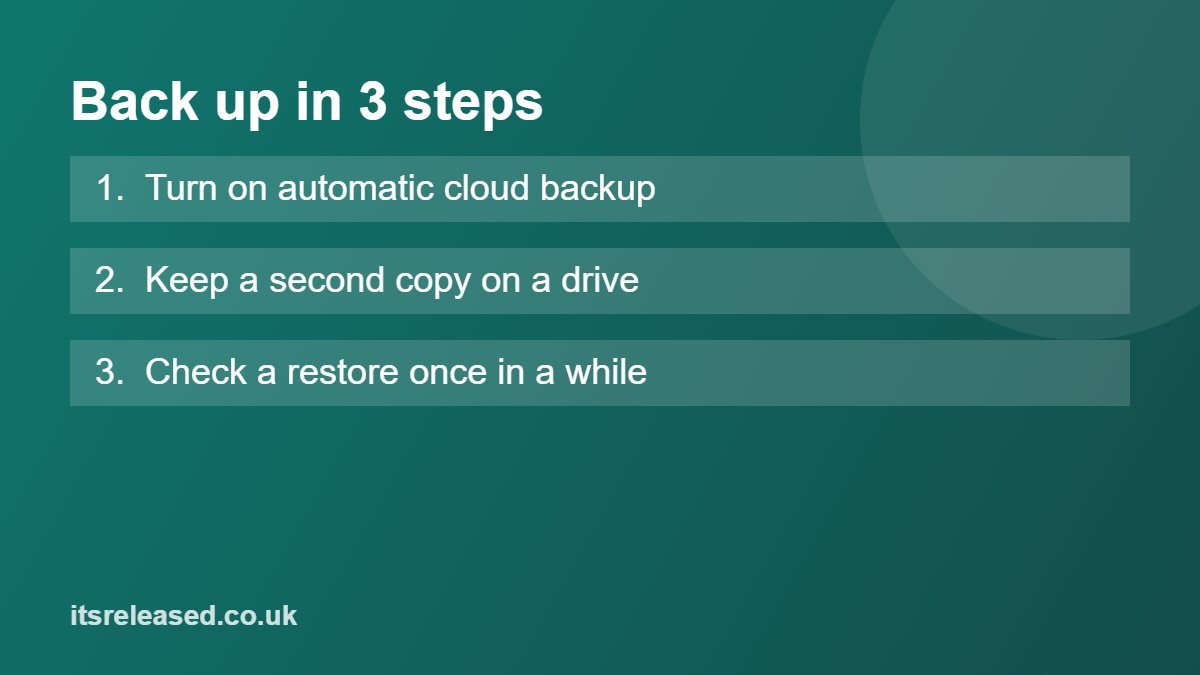
Step 1: Turn On Automatic Cloud Backup
The easiest first layer is the cloud service built into your phone. Because these run automatically, you do not need to remember to do anything.

On iPhone
Open Settings, tap your name, choose iCloud, then Photos, and switch on the sync option. Photos are uploaded when your phone is connected to power and Wi-Fi. Free storage is limited, so check how much space your plan includes and what upgrades currently cost on Apple’s own pages.
On Android
Most Android phones use Google Photos. Open the app, tap your profile picture, choose Photos settings, then Backup, and turn it on. Menus differ slightly between phone brands, so if you cannot find the option, search for “backup” in your phone’s settings or the app.
Step 2: Keep a Second Copy You Control
Cloud backup is convenient, but it is still one service. If your account is locked, a password is lost or a sync mistake deletes pictures, you may have nothing else. A second copy on a device you own gives you a safety net.
- External hard drive or SSD: plug your phone into a computer, copy the photo folder across, and keep the drive somewhere safe.
- USB flash drive for phones: some drives plug straight into the phone, which is handy if you do not use a computer much.
- Computer folder: a simple copy of your photos on your laptop is better than nothing, as long as the laptop is itself backed up.
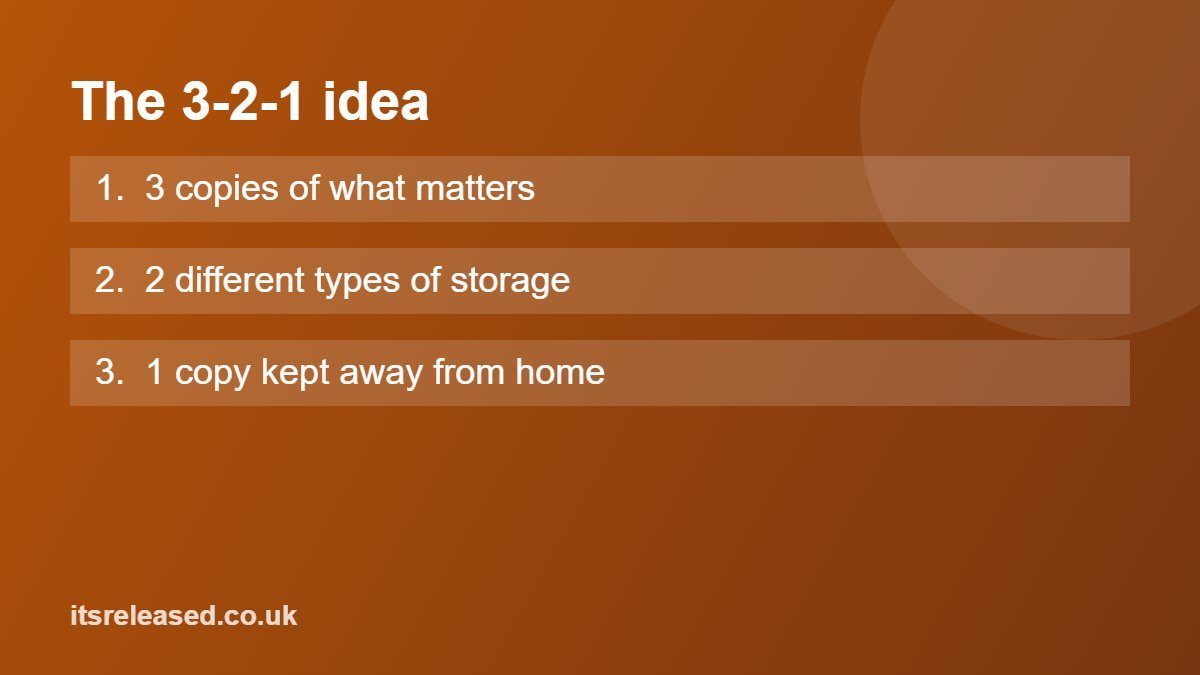
Step 3: Follow the 3-2-1 Rule
Backup experts often suggest the 3-2-1 approach. Keep three copies of important files, on two different kinds of storage, with one copy stored somewhere other than your home. For photos, that could be the original on your phone, a copy on an external drive at home, and a copy in the cloud. You do not have to be perfect; even moving from one copy to two is a big improvement.
More in Blogs
Free Up Space Without Losing Photos
Many people delay backing up because their phone is full. Once you have confirmed that your photos are safely stored in at least two places, you can remove older copies from the phone itself. Our guide to freeing up storage on an Android phone walks through the other places space tends to disappear, such as app caches and downloads.
Before deleting anything, open your cloud app on a different device or in a web browser and check that the photos really appear there. Never assume.
Protect Your Backup Account
Your photos are only as safe as the account that stores them. Use a strong, unique password and switch on an extra login step. Our two-factor authentication guide explains how to do that in a few minutes. It is also worth being careful about messages claiming your storage is full or your account is suspended, as these are a common trick. Read how to spot phishing emails and scam texts so you recognise them.
Organise as You Go
A backup of 40,000 unsorted pictures is hard to use. A few small habits help later on:
- Delete blurry shots and screenshots you no longer need.
- Create albums for big events such as holidays and weddings.
- Back up videos too, because they take up the most space and are easy to forget.
Test Your Backup
A backup you have never checked is a hope, not a plan. Every few months, open your external drive and your cloud account, and make sure recent photos are there and open correctly. If something is missing, fix it while your phone still has the originals.
Common Mistakes to Avoid
The most common problem is relying on a single copy, whether that is the phone alone or only one cloud account. Another is turning off backup to save mobile data and forgetting to switch it back on. A third is deleting photos from the phone before confirming they uploaded. Keeping these three in mind avoids most heartbreak.
Frequently Asked Questions
How often should I back up my phone photos?
Automatic cloud backup runs in the background, so photos are copied whenever you are on Wi-Fi. For a second copy on a drive, once a month is a sensible habit for most people.
Is cloud storage enough on its own?
It is a good start, but a single service is a single point of failure. A second copy on a drive you own makes losing everything much less likely.
Will deleting photos from my phone delete them from the cloud?
With many sync-style services, yes, deleting on one device can remove the photo everywhere. Check how your app treats deleted items and keep a separate copy of anything precious.
What if my cloud storage is full?
You can tidy duplicates, pay for a larger plan, or move older photos to an external drive. Compare current plan prices on the provider’s own site before you decide.
Final Thoughts
You do not need special skills to protect your photos. Switch on automatic cloud backup, add a second copy on a drive you own, and check both occasionally. It is a small effort today that could save you a great deal of regret later.