Passwords alone are no longer enough to protect important accounts, and the advice on what to use instead has changed. Two-factor authentication (2FA) is still a big step up from a password alone, but UK guidance in 2026 now points consumers toward passkeys wherever a service supports them. This guide explains what 2FA is, how the main methods compare, and how to set up the best option you can.
What Is Two-Factor Authentication?
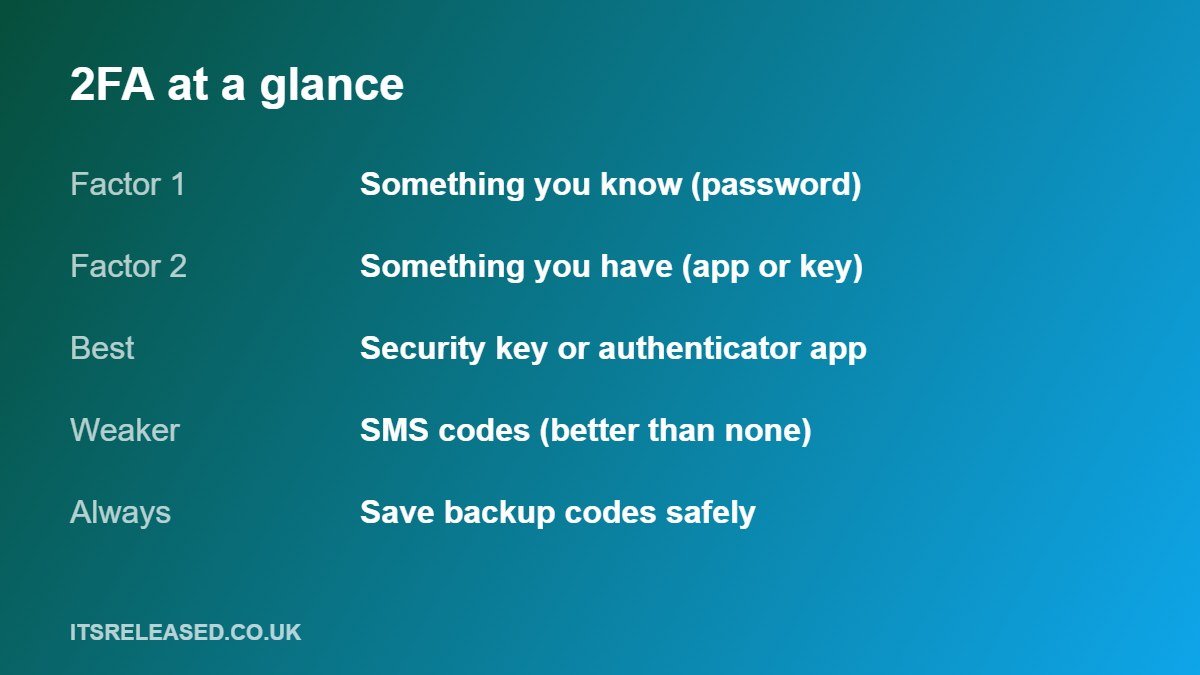
2FA asks for two different kinds of proof when you sign in. The first is usually something you know, such as a password. The second is something you have, such as a code from an app or a security key, or something you are, such as a fingerprint on your device. Even if a criminal learns your password, they should still be blocked without the second factor.
What UK Guidance Now Says: Passkeys First
In 2026 the UK’s National Cyber Security Centre (NCSC) updated its advice. According to press coverage of that guidance, passkeys are recommended as the default login option for consumers on services that support them, because they are at least as secure as a strong password combined with 2FA, and generally more secure. Where a service does not support passkeys, the advice remains to use a strong, unique password from a password manager together with 2FA.

Why the change? Common 2FA methods can still be tricked. A fake login page can ask you for your password and your code, then pass both to the real site. Passkeys are designed to resist that kind of phishing, because they only work with the genuine site.
Comparing the Main Methods
| Method | How it works | Strengths | Weaknesses |
|---|---|---|---|
| Passkey | A cryptographic key on your device, unlocked by fingerprint, face or PIN | No password to steal, resists phishing | Not supported everywhere yet, needs a recovery plan |
| Security key | A physical device you plug in or tap | Very strong, resists fake sites | Can be lost, cost of buying two |
| Authenticator app | A code that changes every few seconds | Works offline, widely supported | Codes can still be typed into a fake site |
| Push approval | You tap approve on your phone | Convenient | Prompt fatigue, easy to approve by mistake |
| SMS code | A code sent by text message | Easy, better than nothing | Risk from SIM swapping and fake sites |
The simple takeaway: use a passkey or security key if the site offers one, use an authenticator app if it does not, and use SMS only when it is the only option.
Which Accounts to Protect First
- Your main email account. It can reset the password of almost everything else.
- Banking and payment apps.
- Your phone account and app store or cloud account (Apple, Google, Microsoft).
- Social media and messaging.
- Cloud storage, where your files and photos live.
- Work and business accounts. See our small business cybersecurity basics.
How to Set It Up
Setting up an authenticator app
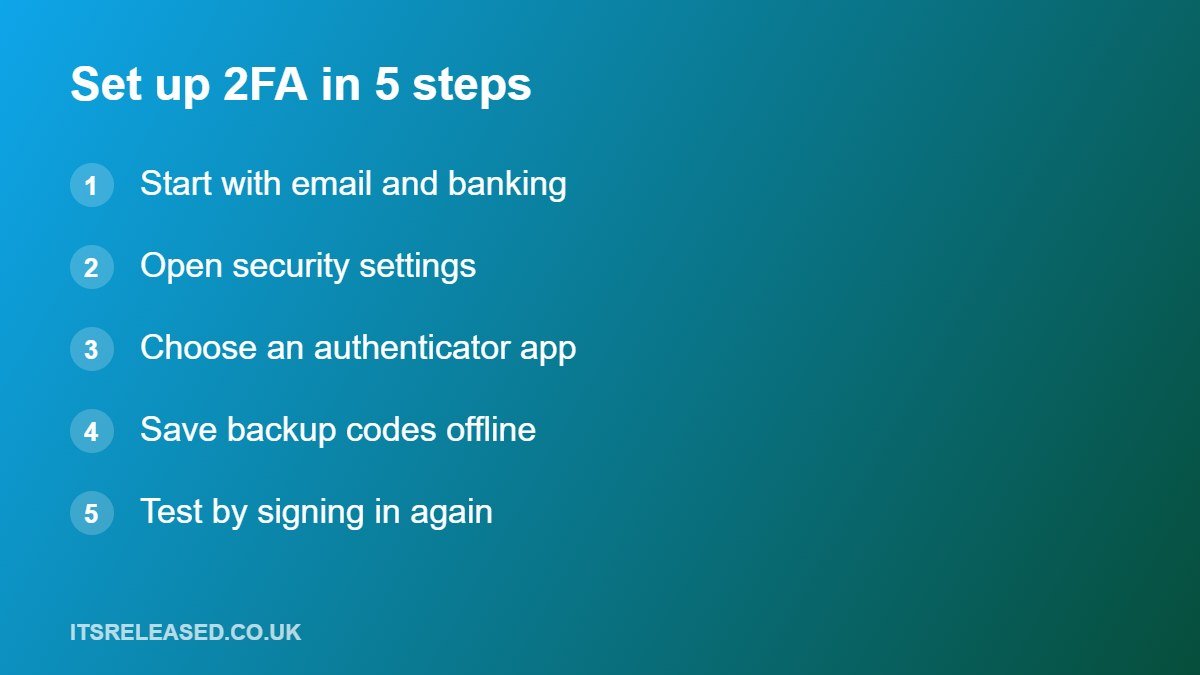
- Sign in and open the account’s Security or Privacy settings.
- Look for two-step verification, two-factor authentication or login verification.
- Choose “authenticator app” and scan the QR code with your app.
- Type in the first code to confirm it works.
- Save the backup codes in a safe place.
Setting up a passkey
When a service offers “Create a passkey” or “Sign in with a passkey”, follow the prompts and approve with your fingerprint, face or device PIN. Many passkeys sync through your device account, such as the keychain or password manager you use, so make sure that account itself is strongly protected, with its own 2FA.
Backup Codes and Recovery
The biggest 2FA problem is not attackers, it is locking yourself out. Save the backup codes the service gives you. Print them or store them in a protected place that is not just a note on the same phone. Add a second method where possible, such as a second security key. Before replacing or wiping your phone, move your authenticator app accounts properly. Keeping important files backed up also reduces the cost of a mistake; see cloud storage versus local backup.
More in Tech
Scams That Target 2FA
- Code requests: nobody legitimate will ask you to read out a code, including bank staff or “support”.
- Prompt bombing: repeated approval requests you did not start. Deny them and change your password.
- Fake login pages: go to the site by typing the address or using your saved bookmark, not through links in messages.
- SIM swapping: if your phone suddenly loses signal unexpectedly, contact your provider and your bank urgently.
What About Businesses?
For businesses, the guidance is more cautious, because many older systems do not support passkeys yet. A sensible approach is to turn on 2FA for email, banking, cloud tools and admin accounts first, then move to phishing-resistant methods over time.
Frequently Asked Questions
Is a passkey the same as 2FA?
No. A passkey replaces the password with a more secure sign-in, and it already combines something you have with a fingerprint, face or PIN.
Is SMS 2FA still worth using?
Yes, if nothing better is available. It is better than no second factor, but app-based codes, security keys and passkeys are stronger.
What if I lose my phone?
Use your backup codes or the account recovery process. This is why you should save them in advance.
Do I still need a strong password?
Yes, on any account that still uses one. Use a unique password for each account from a password manager.
Does 2FA make me completely safe?
No. It greatly reduces risk, but you still need to watch for scams and keep devices updated.
Final Thoughts
Use a passkey where it is offered, an authenticator app where it is not, and SMS only as a last resort. Start with your email and banking, save your backup codes, and stay alert for anyone who asks you for a code.