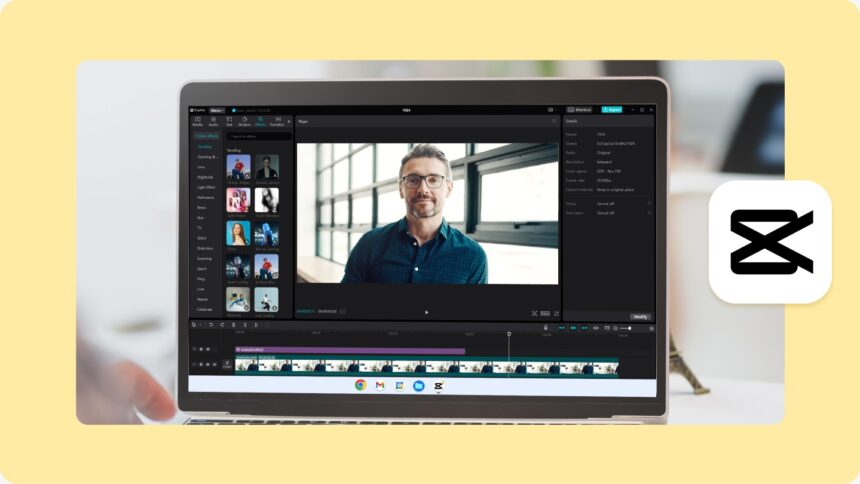
Adding text and stickers to your videos can take them from plain to playful, from simple to professional. Whether you want to highlight important information, make your content fun, or add a personal touch, CapCut Desktop Video Editing software makes it incredibly easy. With its clean interface and beginner-friendly tools, you don’t need years of editing experience to create polished, engaging videos.
Text and stickers are more than just decorations—they’re essential storytelling tools. For example, you can add subtitles to help your audience follow along, captions for social media clips, or fun stickers to entertain viewers. The best part? With CapCut, you can do all of this without complicated steps or expensive software.
Why Add Text and Stickers to Your Videos?
Clarity and Engagement
Text helps viewers understand your message clearly. Subtitles, labels, or headlines make sure your audience never misses key points, even when the sound is off.
Style and Personality
Stickers allow you to showcase creativity. Whether it’s emojis, animated graphics, or playful icons, stickers add fun and energy, making your content stand out.
Better Reach on Social Media
Social platforms like TikTok, Instagram, and YouTube reward engaging content. Adding eye-catching text and stickers helps keep viewers watching longer and encourages shares.
Professional Touch
For businesses or creators, well-placed text (like a call to action or brand tagline) makes videos look polished and intentional, rather than rushed or incomplete.
Why Use CapCut for Text and Stickers?
There are plenty of editing tools out there, but CapCut Desktop Video Editor is a favorite because:
-
User-friendly: You don’t need editing experience. Everything is intuitive.
-
Customizable options: Select from a range of fonts, Voices by Voice Changer, animations, and sticker styles.
-
Free and powerful: CapCut combines the simplicity of a free editor with features often found in premium software.
-
Perfect for short and long content: Whether making TikToks, YouTube vlogs, or professional presentations, CapCut adapts to your needs.
How to Add Text and Stickers Using CapCut Desktop Video Editor
Now let’s break it down into an easy-to-follow process. By the end of this, you’ll be able to add both text and stickers confidently.
Step 1: Open Your Project and Import Media
Launch CapCut Desktop on your computer. Create a new project and import your video or images by clicking the “Import” button. Drag your media to the timeline at the bottom of the screen. Keep your video clips organized on the timeline so it’s easier to see where you want to add text or stickers.
Step 2: Add and Customize Text
Click the “Text” option in the left toolbar. Choose from options like Add Text, Add Subtitle, or Text Templates.
Add Text: Great for titles or single words.
Subtitles: Perfect for dialogues or explanations.
Templates: Ready-made designs for faster editing.
Type your desired text in the preview window. Customize the look:
-
Change font style and color.
-
Adjust size and position on the screen.
-
Add animation effects like fade-in, bounce, or typewriter-style.
Stick to 2–3 fonts throughout your video for a professional look. Too many fonts can be distracting. Try CapCut Online Photo Editor to edit your photo content.
Step 3: Add Stickers to Boost Engagement
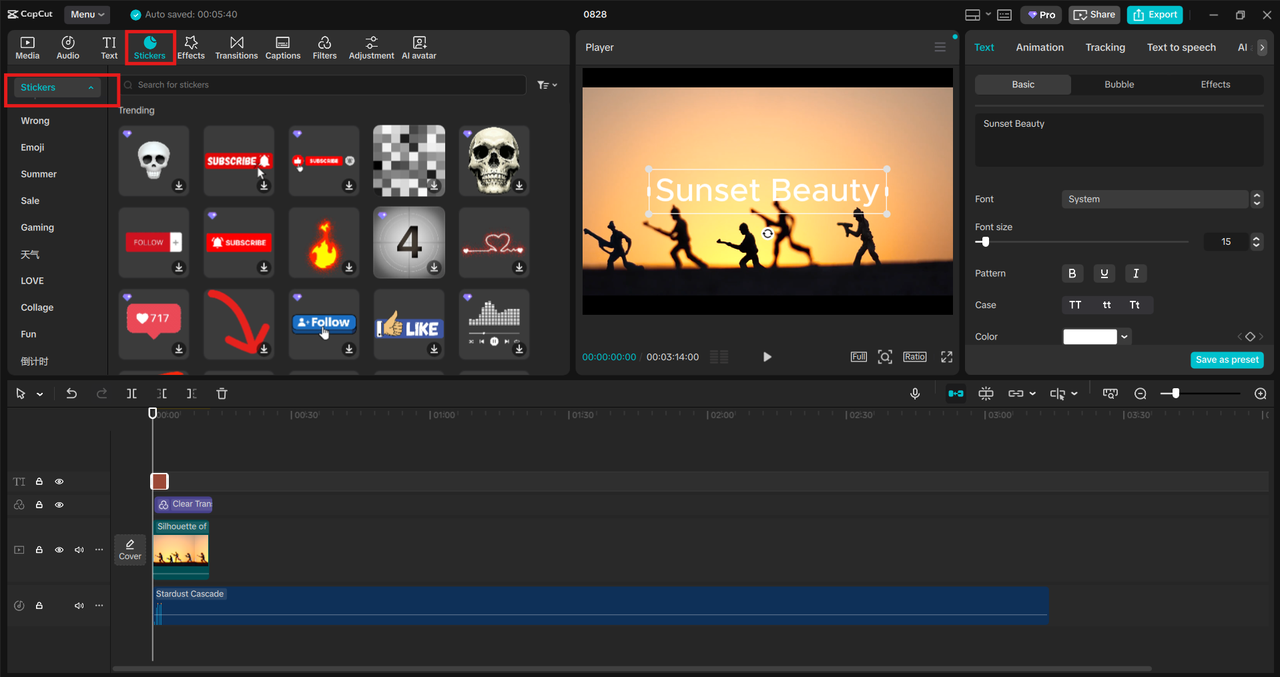
Click on the “Stickers” option in the toolbar. Browse through categories: emojis, animated stickers, fun shapes, and seasonal graphics. Drag and drop the sticker onto your timeline, then position it on the video preview. Resize, rotate, or move the sticker to fit the scene. Adjust the duration by stretching or shrinking it on the timeline. Use stickers sparingly. One or two well-placed stickers can have a bigger impact than cluttering the screen with too many.
Extra Tips for Better Results
-
Match the Tone of Your Video: Funny stickers work well for family or kids’ content, while sleek text designs are more suitable for business videos.
-
Use Contrast for Visibility: Make sure your text stands out against the background. If your video is bright, use bold or dark fonts.
-
Time It Right: Place stickers or text, so they appear at just the right moment—like a reaction emoji popping up when something funny happens.
-
Experiment with Animation: Animated text and stickers grab attention and make your video dynamic without extra effort.
Conclusion
Adding text and stickers in CapCut Desktop Video Editor is one of the simplest yet most effective ways to make your videos engaging, professional, and fun. With just a few clicks, you can highlight important points, express your personality, or add humor to keep viewers watching. Whether you’re making videos for school, work, or social media, this feature is a must-try. All it takes is three easy steps: import your media, add and customize text, and place stickers where you want them. So, open CapCut today and start experimenting—you’ll be amazed at how much better your videos look with just a little text and a few stickers.