A slow Windows PC is rarely a mystery. In most cases, one or two bottlenecks do the damage: too many programs starting with Windows, a nearly full drive, a busy background process, pending updates, or simply too little memory for what you ask the PC to do. This guide puts the fixes in order of impact and risk, shows where each setting lives in Windows 11, and also lists the popular “tweaks” that do little or nothing.
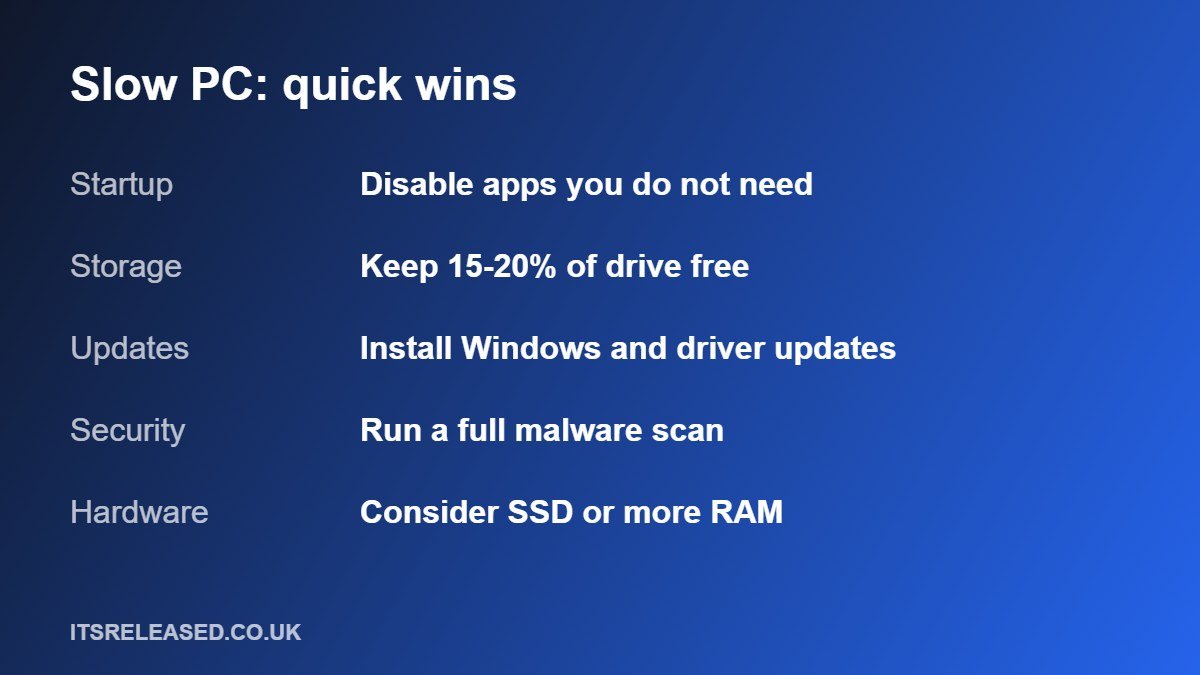
Menu names can differ slightly between Windows versions and PC makers. If you cannot find a setting, type its name into the Start menu search.
Quick Diagnosis: What Is Actually Slow?
Before changing anything, work out what kind of slowness you have, because the fix is different for each.

| Symptom | Likely cause | Start with |
|---|---|---|
| Slow to start up and sign in | Too many startup apps | Startup apps in Task Manager |
| Everything lags, fan is loud | A heavy background process or malware | Task Manager, then a security scan |
| Apps freeze when you open many tabs | Not enough memory (RAM) | Close tabs, check memory use, consider upgrade |
| Files and apps open slowly, disk at 100% | Old hard drive or nearly full drive | Free space, then consider an SSD |
| Slow only in the browser | Extensions or cache | Update browser, remove extensions |
To see this live, press Ctrl + Shift + Esc to open Task Manager and watch the Processes and Performance tabs while the PC feels slow. If memory sits near the top, memory is your limit. If the disk is pinned at or near 100%, storage is the bottleneck.
1. Restart, Then Install Updates
A restart clears memory and ends stuck processes. Many people leave laptops asleep for weeks, which lets problems build up. After restarting, open Settings, then Windows Update, and install what is waiting. Also check your PC maker’s support page for graphics, chipset and storage driver updates, because out-of-date drivers can cause stutters and high disk use.
Note that Windows 10 reached its end of support in October 2025. If you still run it, you are missing normal security updates, so consider upgrading to Windows 11 if your PC is eligible, or check Microsoft’s current options for extended updates.
2. Trim Startup Apps
This is often the single most effective free fix. In Windows 11, go to Settings, Apps, Startup, or open Task Manager and choose Startup apps. The list shows a startup impact rating for each program.
More in Tech
- Disable chat apps, game launchers, update helpers and cloud tools you do not need the moment you sign in.
- Leave your security software, touchpad and graphics utilities enabled.
- If you are unsure what an entry is, search its name before disabling it. Disabling does not uninstall anything, and you can turn it back on.
3. Free Up Storage With Storage Sense
When the system drive is nearly full, Windows has little space for temporary files and updates. Open Settings, System, Storage and turn on Storage Sense, then choose to run it now. Also review Temporary files and Cleanup recommendations. As a rule of thumb, try to keep a healthy share of your system drive free, and move large photos and videos elsewhere. Our guide to cloud storage versus local backup explains how to do that without risking your files.
4. Uninstall Apps You Do Not Use
Go to Settings, Apps, Installed apps, sort by size or install date, and remove programs you no longer need. Old trial software and toolbars are common culprits. Be careful with anything from your PC maker that you do not recognise, and leave drivers alone.
5. Find the Real Resource Hog
In Task Manager, click the CPU, Memory and Disk columns to sort by use. If one app is always at the top, update it, change its settings, or replace it with a lighter alternative. Browsers with dozens of tabs and extensions are the most common example. Windows can also limit background activity for some apps under their advanced options.
6. Scan for Malware, But Do Not Turn Security Off
Unwanted software can quietly use your processor and network. Run a full scan with Windows Security or another trusted tool. Do not disable your antivirus to gain speed, because the small gain is not worth the risk, and do not run several antivirus programs at once, since they can conflict. For safe habits that prevent most infections, see our cybersecurity basics guide.
7. Reduce Visual Effects and Check Power Mode
On older or budget PCs, animations and transparency use resources. Search for “visual effects” in Settings and turn off transparency and animation effects, or open Advanced system settings, Performance, and choose Adjust for best performance. On a laptop, make sure the power mode is not stuck on a battery saver setting while plugged in.
8. Check the Browser Separately
If only websites feel slow, update the browser, remove extensions you do not use and clear cached data. Test in a private window without extensions. If that is fast, an extension is the cause.
9. Know Your Drive Type
Windows manages optimisation for you. On an SSD, you should not manually defragment. On an old mechanical hard drive, slow performance is normal for Windows 11 and an SSD upgrade usually helps more than any software trick.
10. Use Reset as a Last Software Step
If the PC is still slow after the steps above, Settings, System, Recovery offers Reset this PC. You can keep your files or remove everything. A reset removes years of clutter and software conflicts, but back up first and keep your licence keys and installers ready.
Fixes That Do Little or Nothing
- Registry cleaners: they promise speed but rarely deliver, and they can cause problems.
- “RAM booster” apps: Windows already manages memory well.
- Disabling services at random: this can break features without a noticeable speed gain.
- Several “PC optimiser” tools at once: they often add their own background load.
When to Upgrade
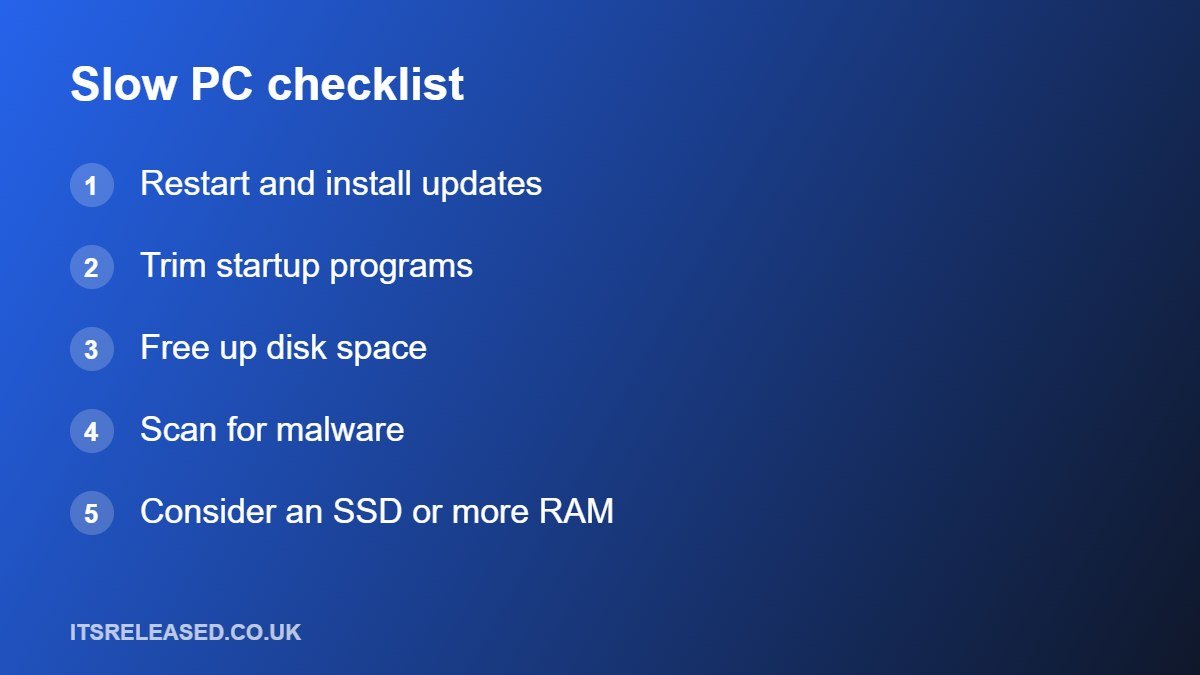
If you have done the free fixes and the PC is still slow, the hardware is the limit. In order of usual benefit: move to a solid state drive if you still have a hard drive, add memory if Task Manager shows it is nearly full during normal use, and replace the PC if it is very old. If you are choosing a new machine for work, read our guide on how to choose a business laptop.
| Upgrade | Best for | Typical effect |
|---|---|---|
| SSD instead of hard drive | Slow start-up and slow app loading | Often the biggest improvement |
| More RAM | Many apps and tabs open at once | Fewer freezes under load |
| New PC | Very old or unsupported hardware | Fixes several limits at once |
Frequently Asked Questions
Why did my PC suddenly become slow?
Common causes are a pending update, a full drive, a heavy background app or malware. Check Task Manager first.
Is it safe to disable startup apps?
Yes for most apps. Disabling only stops them launching at sign-in. Leave security and driver tools alone.
Will resetting my PC delete my files?
You can choose to keep personal files, but always back up first.
Does adding RAM always help?
Only if memory is the bottleneck. Check Task Manager before buying.
Is it worth upgrading an old PC?
An SSD can transform an older machine. If the whole PC is very old, a replacement may be better value.
Final Thoughts
Start with a restart, updates, startup apps and free space. Then find the real resource hog, scan for malware and only then think about hardware. This order fixes most slow Windows PCs without spending money.